EnderFall app
Legend
Discord server dashboard for creating embeds, automations, commands, and role flows.
Open app
Discord server dashboard for creating embeds, automations, commands, and role flows.
Legend modules
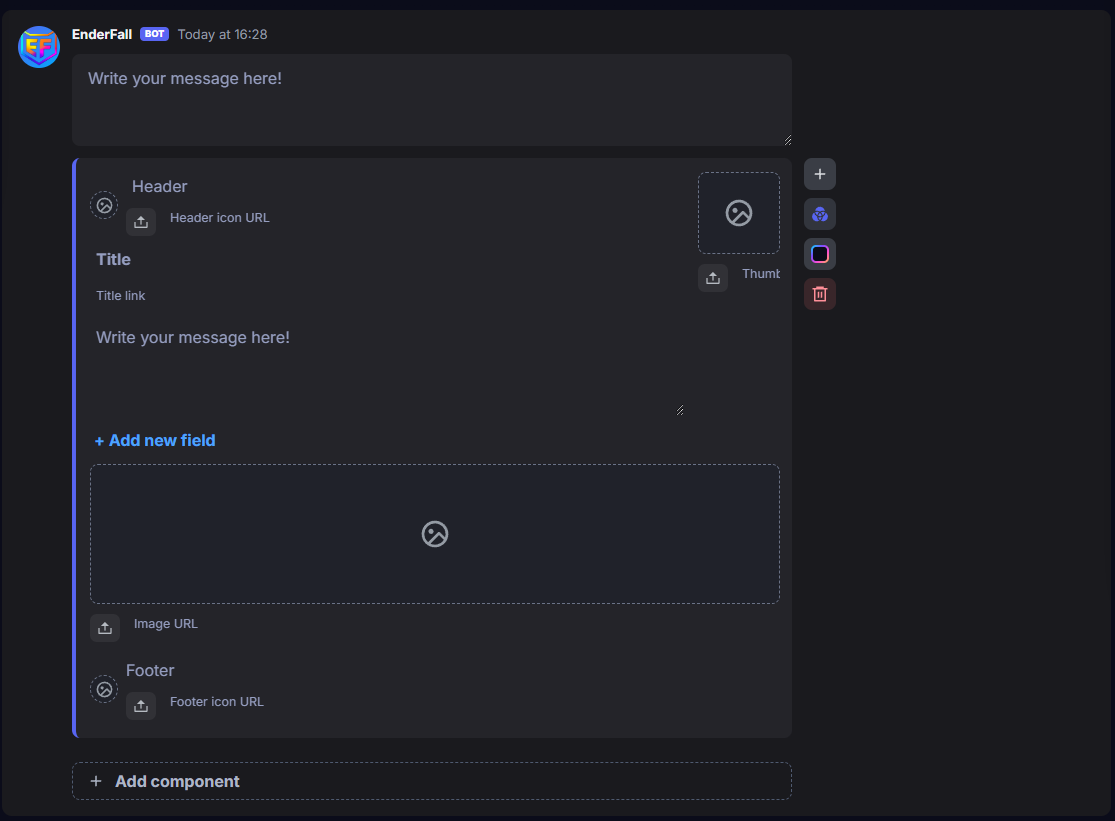
Create announcement embeds, rules posts, buttons, and reusable Discord messages.
- Design polished posts and reusable panels
- Keep message actions in one editor
- Publish to the channels your team manages
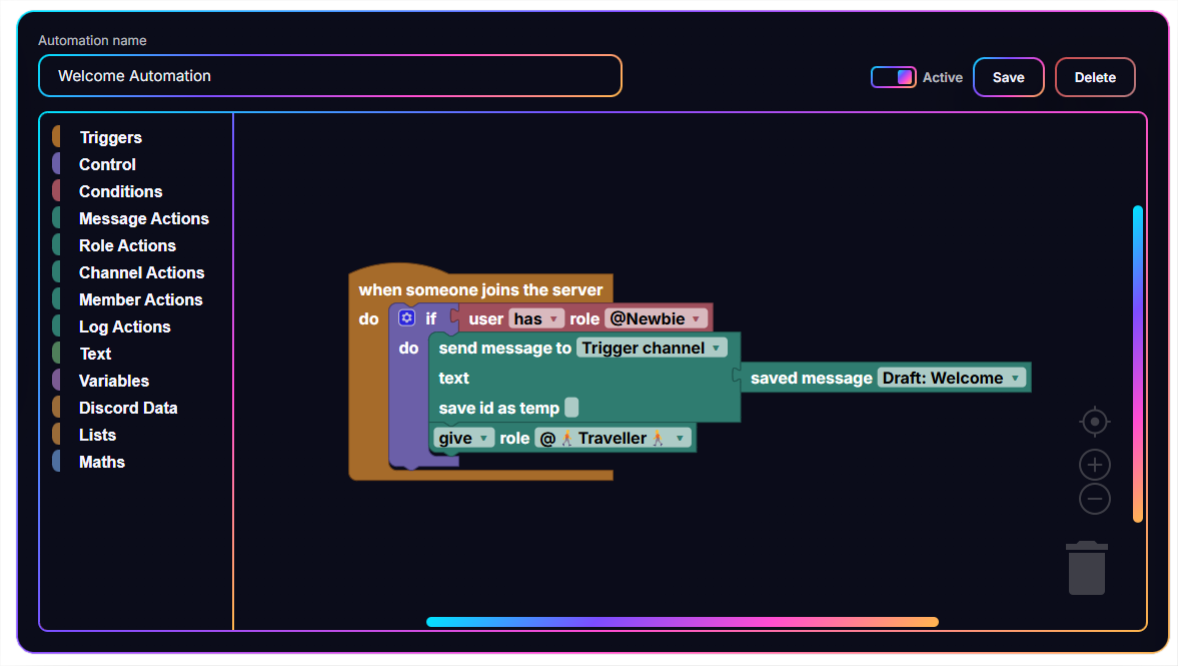
Build flows for welcomes, verification, moderation cleanup, events, and rewards.
- Build without writing Discord bot code
- Connect roles, messages, and server events
- Keep repeatable work visible to the whole team
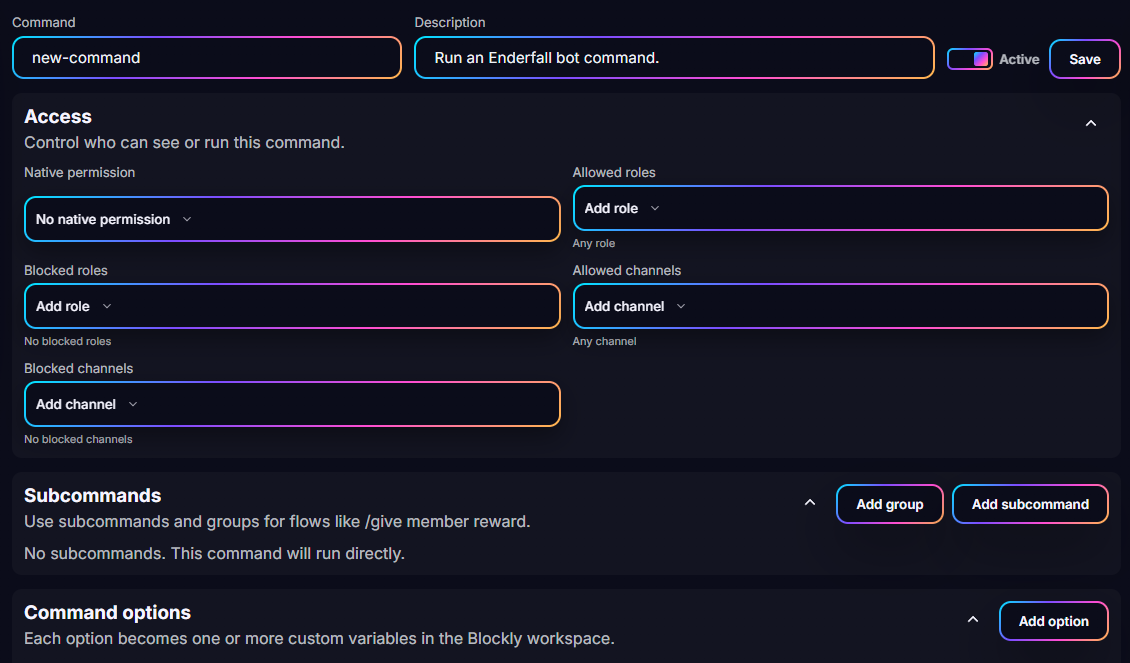
Configure server commands with options, subcommands, permissions, and responses.
- Configure options and response behaviour
- Set visibility rules for server teams
- Sync ready-to-use commands to Discord
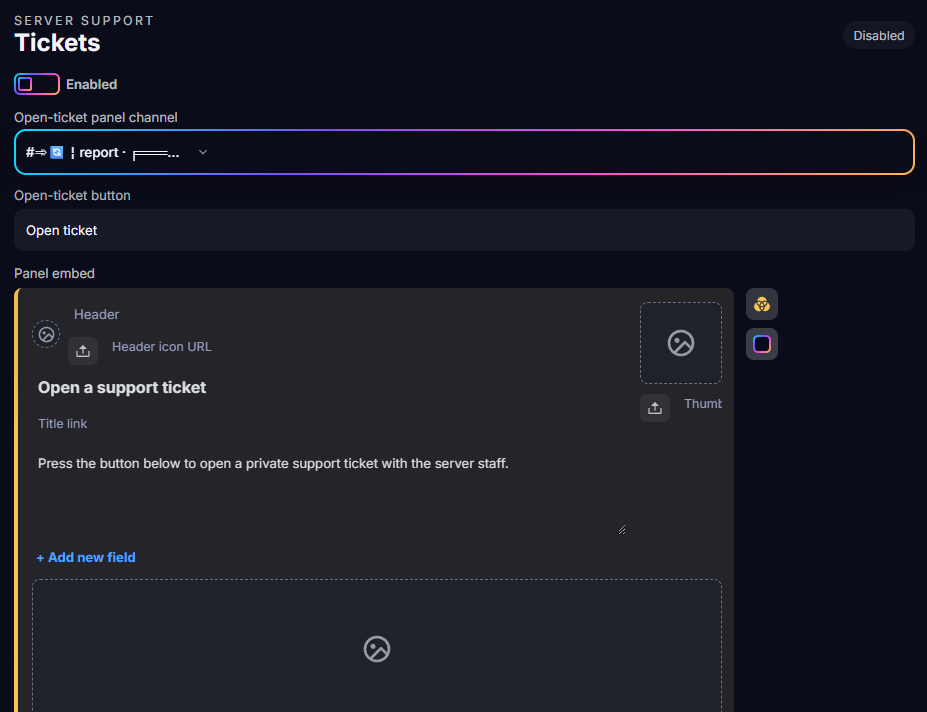
Give members private help threads, staff routing, and a cleaner support panel.
- Create support paths that match your staff team
- Route issues into private member threads
- Keep panel copy and roles under your control
Let members choose interests, event roles, server access, and onboarding paths.
- Put role choices directly inside your server
- Guide interests and access on day one
- Combine onboarding with automated follow-up
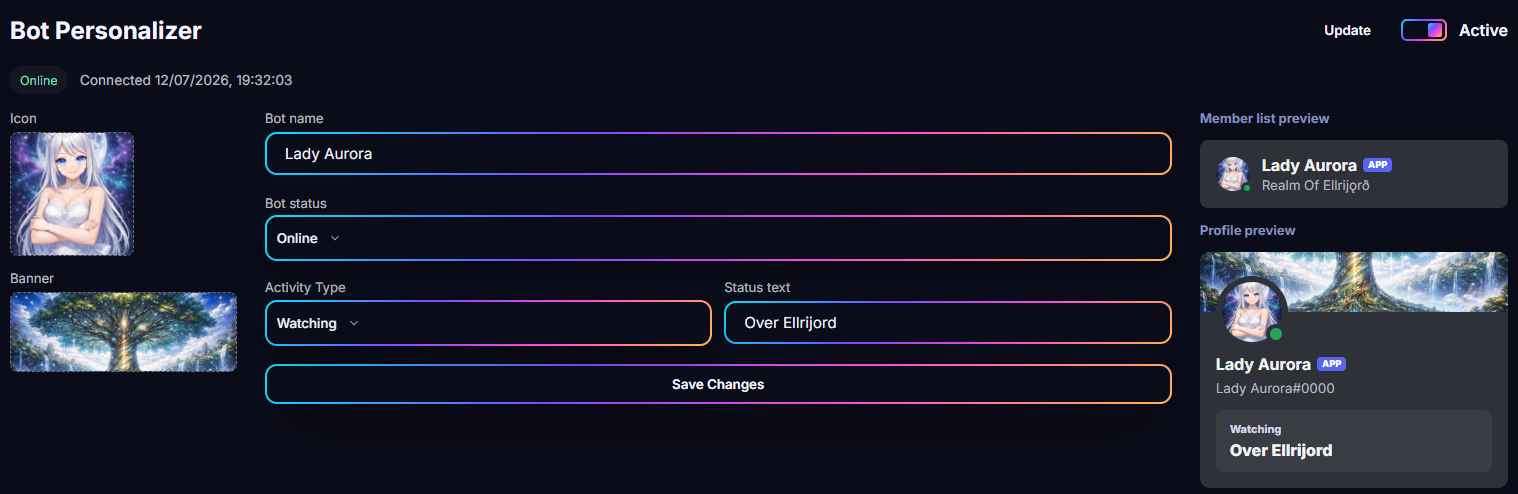
Run a server-branded bot presence with custom identity controls where enabled.
- Keep a consistent branded bot identity
- Set your presence and community-facing profile
- Unlock control for larger server operations
Get Legend working in your server
Sign in and link Discord
Start in the Legend dashboard so Enderfall can identify the Discord account that manages your server.
- Open the Legend dashboard and select Sign in.
- Sign in to Enderfall, then link or sign in with Discord when prompted.
- Return to the dashboard after Discord redirects you back.
Legend can begin discovering the servers your Discord account manages.
Connect Discord access
Authorize Discord server access so Legend can show only the servers you own or have permission to edit.
- On the dashboard, select Connect Discord.
- Approve the Discord authorization request for server discovery.
- Return to Legend and wait for your manageable servers to appear.
Your available Discord servers are ready to choose from the Legend dashboard.
Choose and invite your server
Select the server you want to run with Legend, then install the bot if it is not already there.
- Choose your server from the Legend server list.
- Select Invite if Legend is not installed, then complete the Discord invite.
- Accept the requested bot and slash-command access, then refresh the server list in Legend.
Your selected server is installed and ready for configuration.
Enable, configure, and sync
Turn Legend on for the selected server, set up the first feature, and send the changes to Discord.
- Open your selected server dashboard and turn on Enabled in Settings, then save.
- Install an example or create your first message, command, or automation.
- Select Sync bot from the dashboard header and wait for the sync request to complete.
Your first Legend feature is live in Discord and ready for your community to use.
Visual automation builder
Start with the right trigger
Build from the server event, button press, message, or scheduled moment that starts the work.
Add the decisions your server needs
Branch by role, channel, answers, or checks so every path reflects how your community operates.
Compose the outcome
Chain messages, roles, support paths, and follow-up actions into a workflow your team can reuse.
Start free
Start with 10 active messages, 5 automations, 5 slash commands and 3 active component messages.
Configure messages, roles and workflows from the Legend dashboard. Premium features are marked in the dashboard.